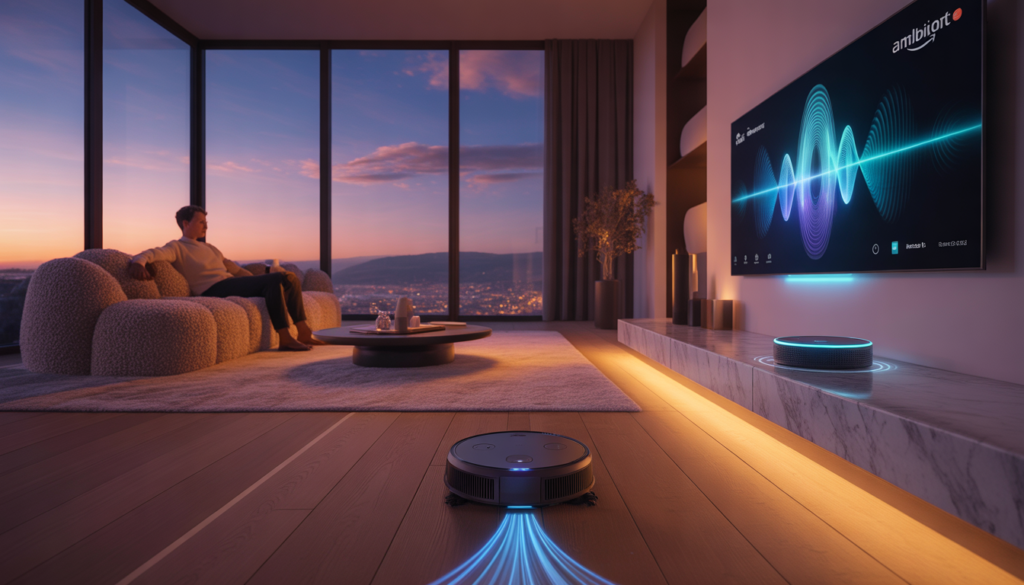
You want a really smart home. You want everything connected. Alexa voice sync makes this possible. It links your Smart TV and robot vacuum. They finally talk to each other. Your home listens and responds. This guide shows you how. You will finish tonight. You need to sync TV and robot devices with one brain. That brain is Alexa. When you do this, your home listens. It responds. You gain true convenience. This guide reveals the absolute best method. It is simple. It is fast. You will finish tonight. Then, your home will finally feel alive.
In This Article: Your Smart Home Roadmap
| Step | Action | Key Benefit |
|---|---|---|
| 1 | Verify Device Compatibility | Ensures a smooth, error-free connection process. |
| 2 | Prepare Your Network & Apps | Creates a stable foundation for all commands. |
| 3 | Enable & Link Alexa Skills | Let’s Alexa find your TV and vacuum on the Wi-Fi. |
| 4 | Discover Your Devices | Lets Alexa find your TV and vacuum on the Wi-Fi. |
| 5 | Test & Create Routines | Verifies the sync and unlocks advanced automation. |
H2: Step 1 & 2: Prepare to Sync TV and Robot for Success
Preparation prevents poor performance. This is true for your smart home, too. You must lay the groundwork first. These initial steps ensure you sync TV and robot devices without any headaches.
Step 1: Check Your Gear for Compatibility
Not all smart devices work together. You must check first. Look at your Smart TV. Is it a popular brand like Samsung, LG, or Sony? “…Most models from 2018 onward support Alexa. For older TVs, you might need a Fire TV Stick. This stick adds Alexa smarts. Energy-efficient smart TVs not only lower your electricity bills but also help maintain your solar system’s efficiency, ultimately improving your [Solar ROI].”
Now, check your robot vacuum. Look for the “Works with Alexa” logo. You can find this on the box. You can also see it online. Brands like iRobot Roomba, Eufy, and Roborock usually work. Also, ensure you have an Alexa device. This could be an Echo Dot, an Echo Show, or the Alexa app on your phone. You need this speaker or screen to talk to.
Step 2: Build a Strong Foundation
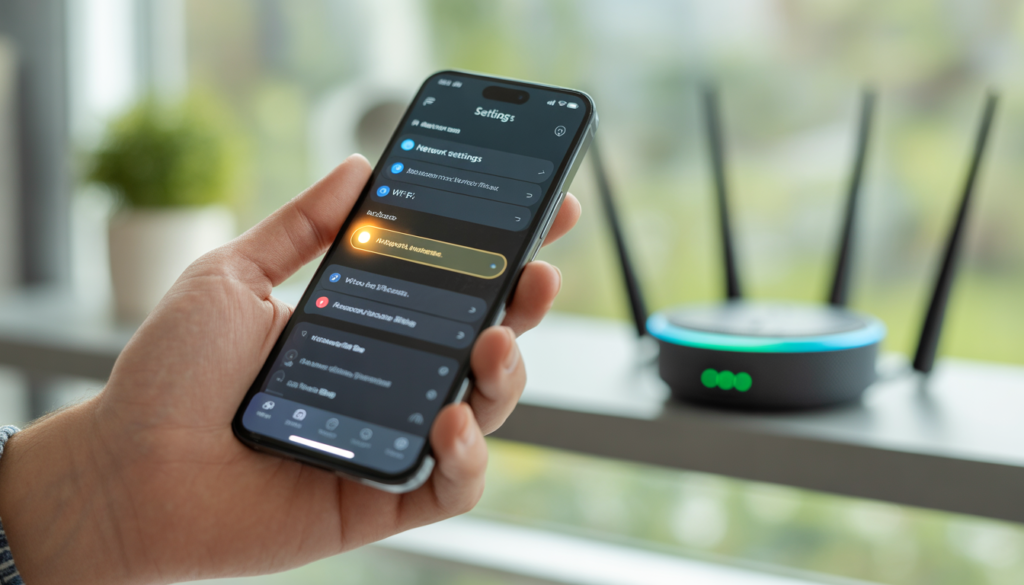
A smart home needs a strong network. Your Wi-Fi is the backbone. Make sure your router works well. Place it in a central spot. This helps both your TV and vacuum get a strong signal.
Then, grab your phone. Open your app store. Update the Amazon Alexa app. This is very important. Next, update the app for your TV. For Samsung, that is SmartThings. For LG, it is LG ThinQ. Also, update your vacuum’s app. This might be iRobot Home or Eufy Clean. Log in to these apps. Connect your TV and vacuum to your home Wi-Fi through them. Alexa cannot find devices that are offline. So, this step is vital.
Quick Comparison: Popular Device Brands
| Device Type | Brand | Required App | Alexa Skill Name |
|---|---|---|---|
| Smart TV | Samsung | SmartThings | SmartThings |
| Smart TV | LG | LG ThinQ | LG ThinQ |
| Robot Vacuum | iRobot Roomba | iRobot Home | iRobot |
| Robot Vacuum | Eufy (Anker) | Eufy Clean | eufy Clean – RoboVac |
| Robot Vacuum | Roborock | Roborock | Roborock |
H2: Step 3, 4 & 5: The Core Process to Sync TV and Robot
Now for the main event. This is where the magic happens. Follow these steps carefully. You will finally sync TV and robot devices to Alexa.
Step 3: Enable Skills in the Alexa App
Think of Skills as apps for Alexa. They teach her new tricks. Open your Alexa app. Go to the “More” menu. Then tap “Skills & Games.”
First, search for your TV’s skill. Type “SmartThings” for Samsung. Select it and tap “Enable to Use.” It will ask you to log in. Use your Samsung account details. This links your TV to Alexa.
Next, search for your vacuum’s skill. Type “iRobot” or “eufy Clean.” Select the correct one. Tap “Enable.” Log in with your vacuum app account. You have now permitted Alexa. She can finally talk to your devices.
Step 4: Discover All Your Devices
Alexa knows she has permission. But she does not know your specific devices yet. You must run a discovery. This makes her find them on your Wi-Fi.
- Go to the “Devices” tab in the Alexa app.
- Tap the “+” icon in the top corner.
- Select “Add Device.”
- Then, tap “Discover Devices.”
- Wait. The app will scan your network. This usually takes about a minute.
- Your TV and robot vacuum will appear. You can now assign them to rooms. Name your TV “Living Room TV.” Name your vacuum “Living Floor.” This makes voice commands much easier.
Step 5: Test Commands and Create Routines
Test your work. Use simple, clear commands.
- Say, “Alexa, turn on the Living Room TV.”
- Say, “Alexa, tell Roomba to start cleaning.”
Did it work? Great! You successfully learned to sync TV and robot devices.
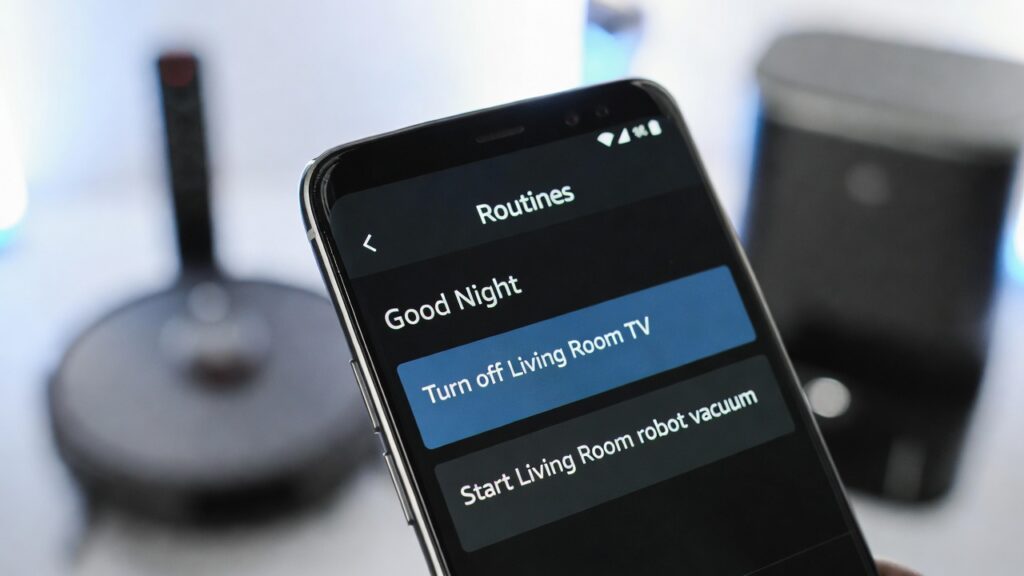
Now, take it further. Create Routines. Routines are multi-step commands. For example, create a “Good Night” routine. When you say, “Alexa, good night,” she can turn off the TV and tell the vacuum to clean for 10 minutes. This unlocks the true power of your smart home.
Pro Fix Box: The Devices Won’t Sync!
The Problem: You enabled skills. You ran discovery. But Alexa says, “I cannot find that device.”
The Quick Fix:
- Reboot Your Router: Unplug your Wi-Fi router. Wait 60 seconds. Plug it back in. This clears network congestion.
- Reboot Your Echo: Unplug your Amazon Echo device. Plug it back in.
- Check Native Apps: Open the SmartThings or iRobot app. Verify your TV and vacuum show as “Online” there. If not, fix the connection in those apps first.
- Rediscover: In the Alexa app, go to Devices. Tap “Discover.” Run discovery again after everything reboots. This almost always solves the issue.
Frequently Asked Questions (FAQs)
| Question | Will the robot vacuum clean specific rooms by voice command? |
|---|---|
| Can I sync TV and robot devices if my TV is old? | Yes, you can. If your TV does not have Alexa built-in, use a Fire TV Stick. Plug it into an HDMI port. This device connects to Alexa. It lets you control the TV with your voice. |
| Why does Alexa turn off the TV but not turn it on? | This is common. Some TVs only turn on via a special signal called CEC. Check your TV settings. Look for “HDMI-CEC” and enable it. Also, make sure your TV is in standby mode. It cannot turn on if it is unplugged from the wall. |
| Will the robot vacuum clean specific rooms with voice? | It depends on the vacuum model. Advanced vacuums with mapping can do this. You must set up the maps in the vacuum’s app first. Then, you can say, “Alexa, tell Roomba to clean the kitchen.” |
| Can multiple people in my home control the devices? | Yes. Anyone with the Alexa app on their phone can control the devices. Also, anyone in the room can speak to the Echo device. Alexa responds to anyone who asks. |
| Is it safe to sync TV and robot devices to Alexa? | Yes, it is generally safe. Amazon uses encryption to protect your data. Always use a strong password for your Wi-Fi network. Also, enable two-factor authentication on your Amazon account for extra security. |
Conclusion: Your Smart Home Awaits
You now know the best method. You learned how to sync TV and robot devices. You prepared your network. You enabled skills. You discovered devices. Your home is no longer just full of gadgets. It is a connected smart home. It responds to your voice. It makes life easier.
Start with the basics. Turn your TV on and off with a word. Ask your vacuum to clean up a mess. Then, explore routines. Automate your whole evening. The power is now in your hands.
What is the first voice command you will try? Tell us in the comments below!